
Open a paper from the library and it appears in its own tab. The inspector on the right holds everything Paper Intelligence found; the floating toolbar on the left holds highlighting, search, and sharing.
Tabs
Each open paper is a tab. Switch between them in the tab bar, or tap Open Documents to see all open tabs. A tab's menu offers Open in New Window, Re-Extract, and Report Extraction Problem….
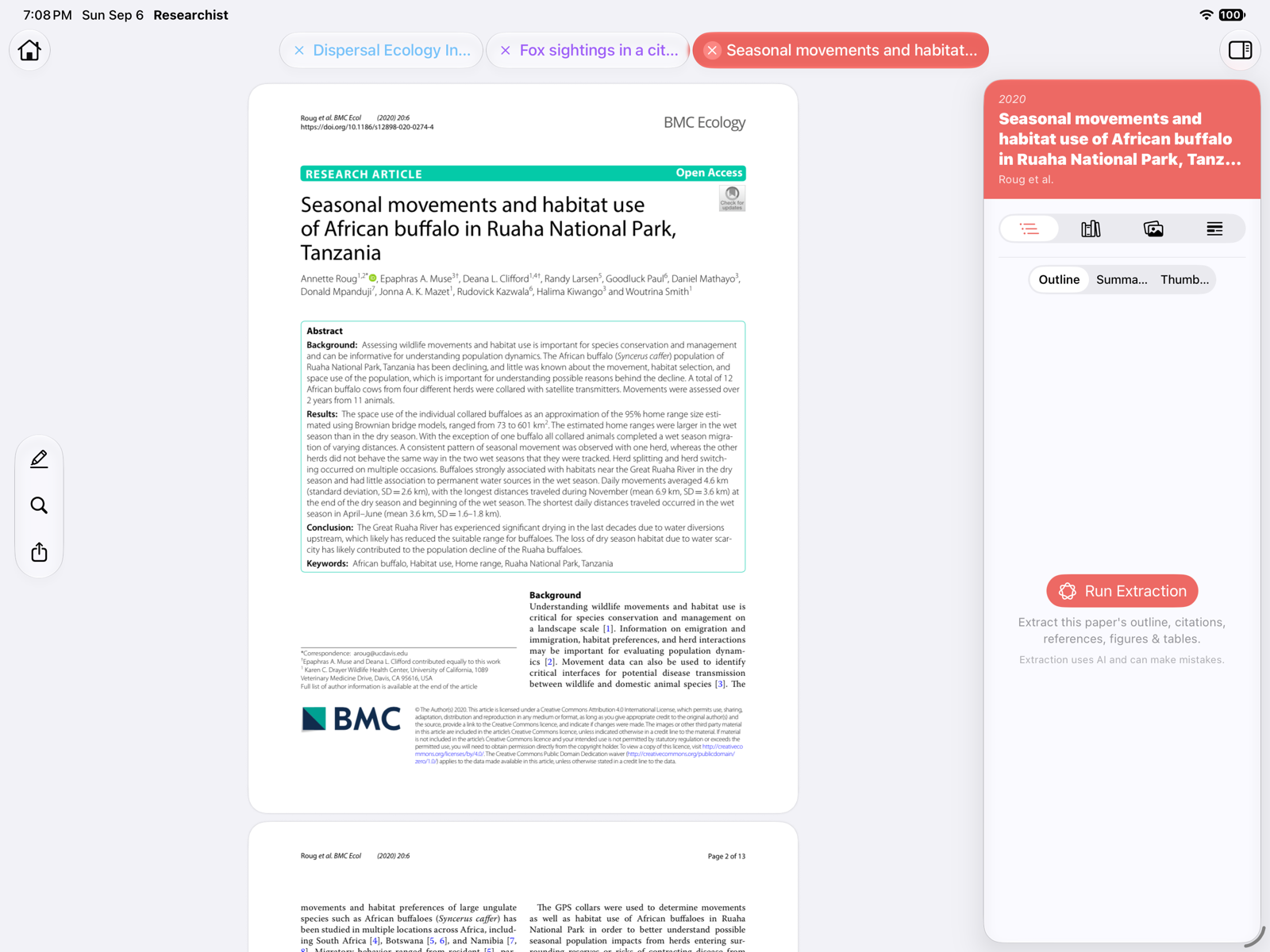
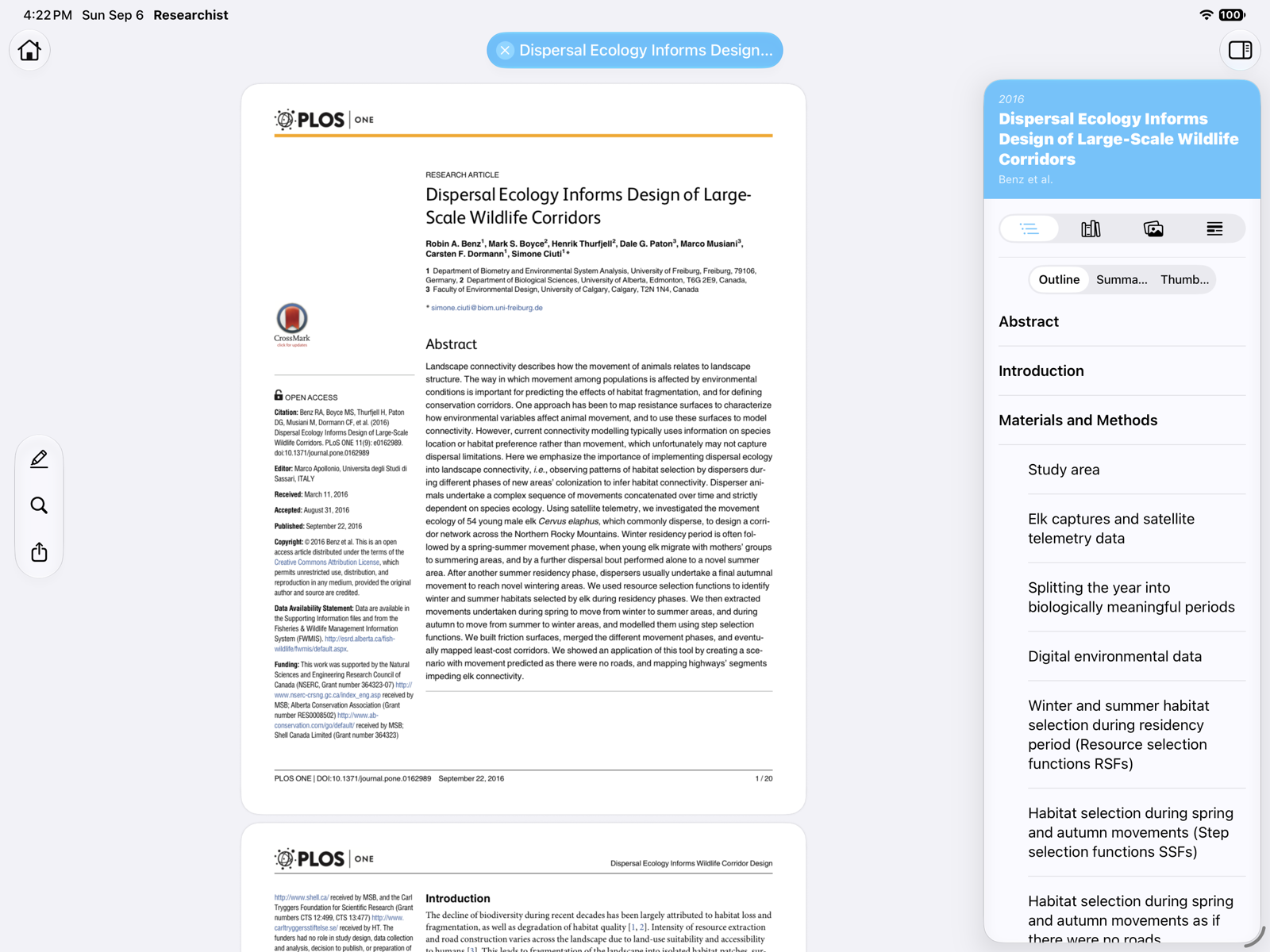
Outline, Summaries, and Thumbnails
Open the inspector and choose Outline. The picker at the top switches between:
- Outline: the paper's sections. Tap one to jump there.
- Summaries: key points for each section, written on your device.
- Thumbnails: page previews for quick scrolling.
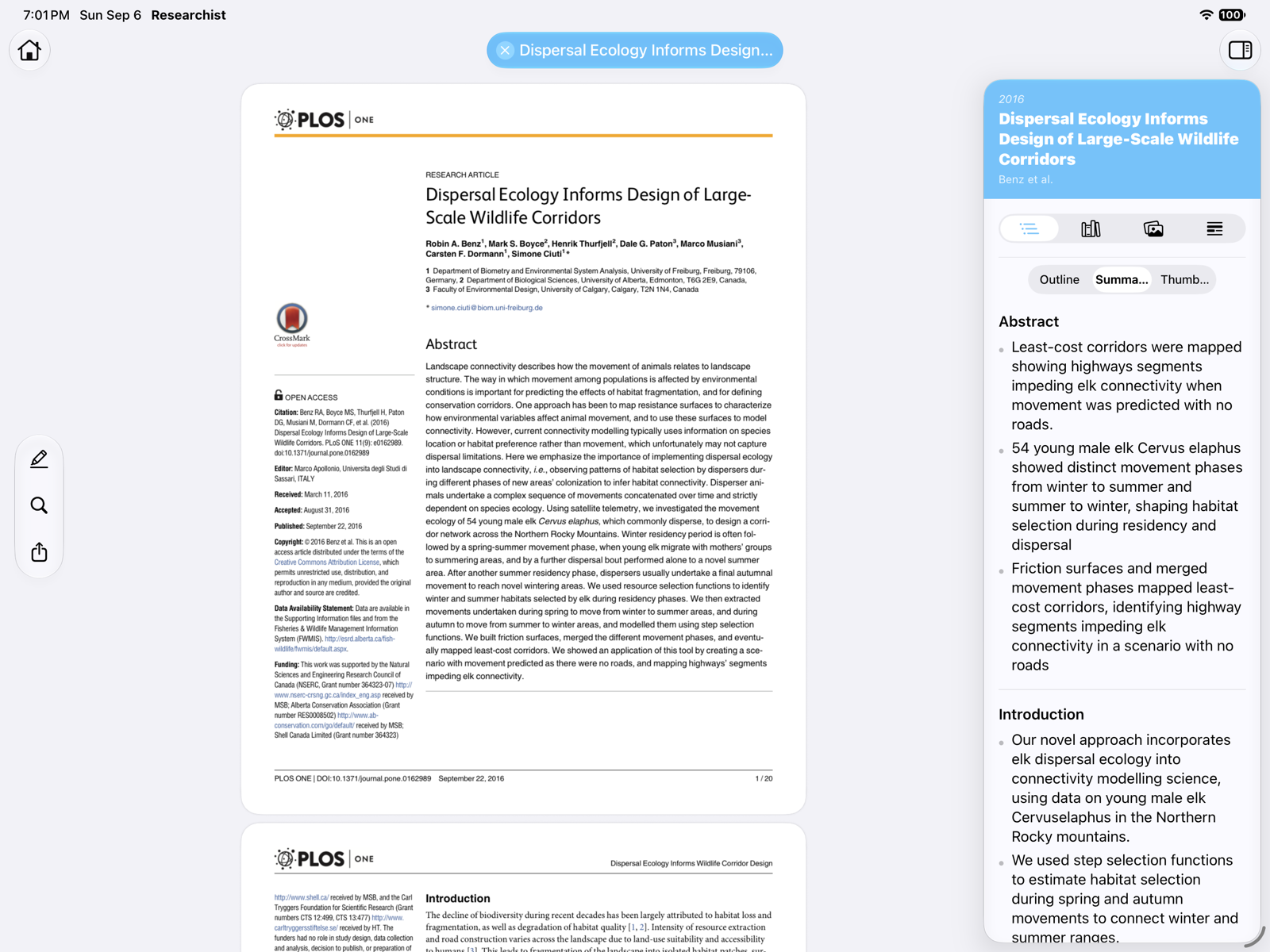
Figures and Tables
Choose Elements in the inspector and switch between Figures and Tables; papers with equations get an Equations view too. Each entry shows the element with its caption and page; tap it to jump to its place in the paper.
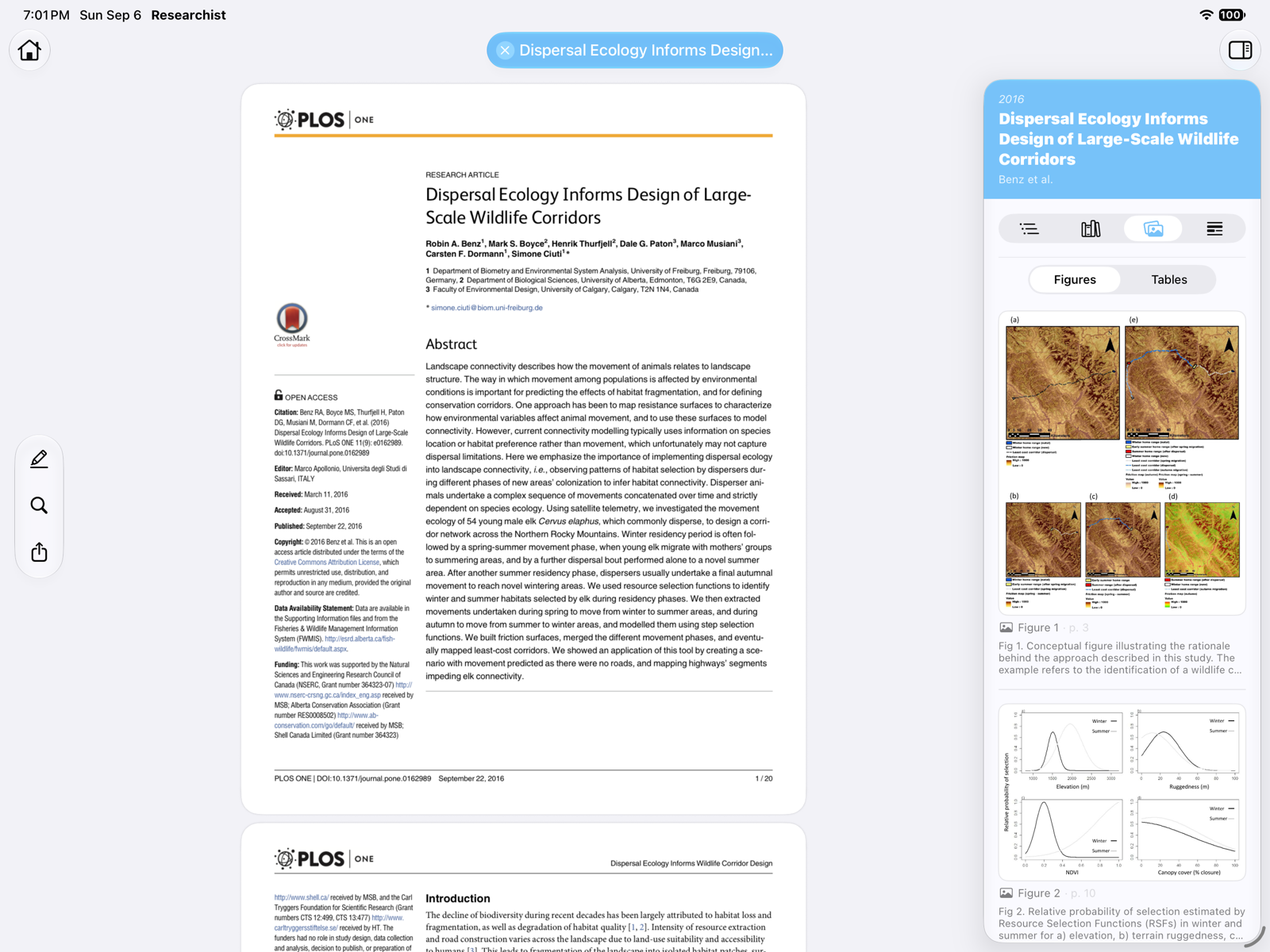
Search in the paper
Tap the magnifier in the floating toolbar, or press ⌘F with a keyboard, and type. Matches are highlighted as you go.
Empty tabs
If a tab says No outline found or No figures found, the paper hasn't been processed yet or the paper simply has none. Tap Run Extraction to process it. See Paper Intelligence.


.svg)
