
Organizing Your Library

The library is where all your papers live. The sidebar has Open Tabs, Recents (the last 20 papers you opened), All, and your collections.

Collections

Collections are folders for papers, for example one per project or course. They require a Researchist Pro subscription.

  1. Tap New Collection at the top of the sidebar.
  2. Enter a name and confirm.
  3. Add papers by dragging them onto the collection, or open a paper's context menu and choose Add to Collection.
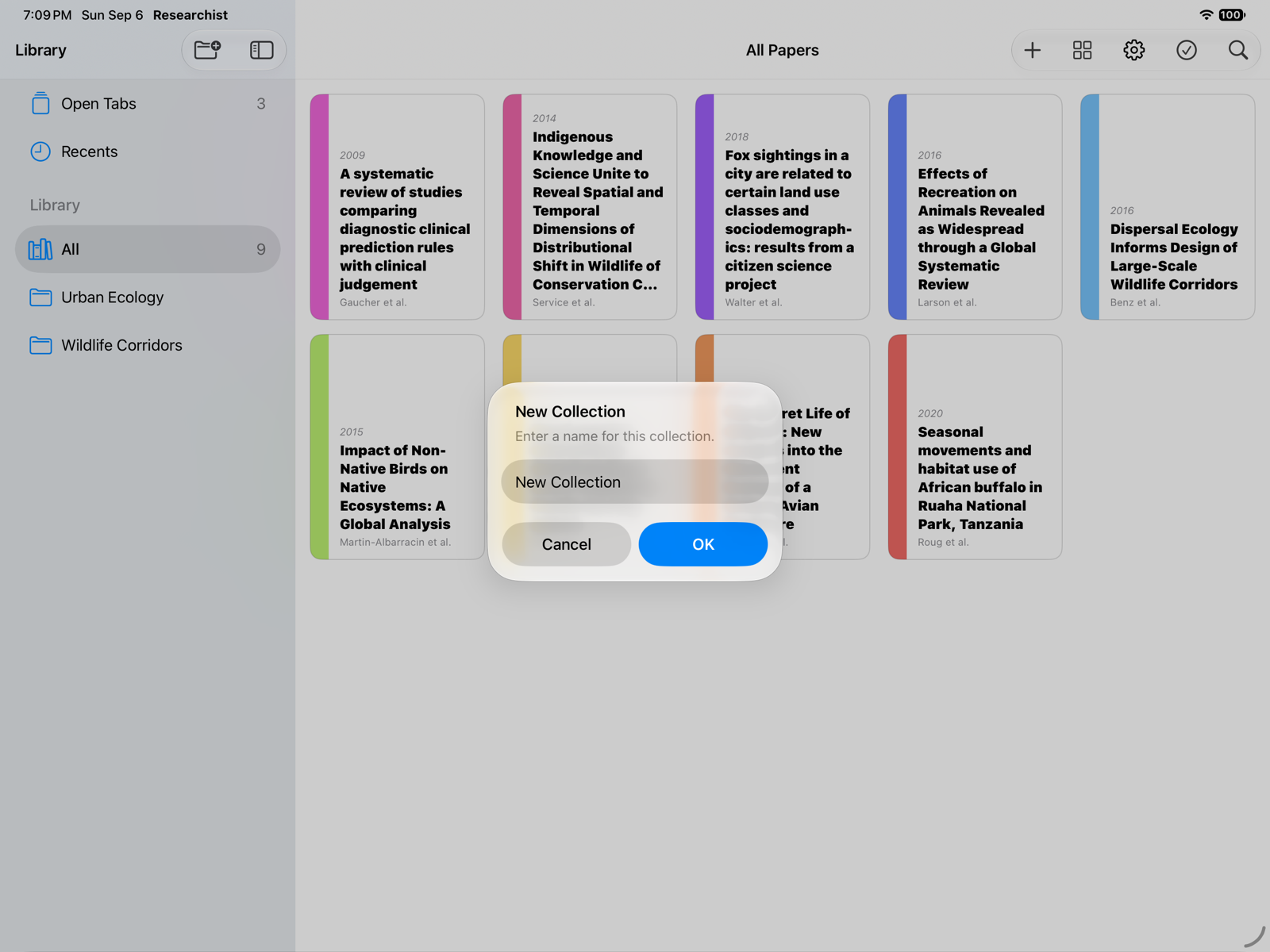
The library with two collections in the sidebar and the New Collection dialog open

A paper can be in several collections. Rename or delete a collection from its context menu; deleting a collection does not delete the papers.

Colors and cover styles

Every paper gets a color from the current theme, and you can change it: open the paper's context menu and choose Color. The color also becomes the paper's first highlight swatch. Themes and cover styles (Stripe, Outline, Solid Color, L-Corner, Corner Ribbon) live in Settings › Appearance. The first theme and style are free; the rest are part of Researchist Pro.
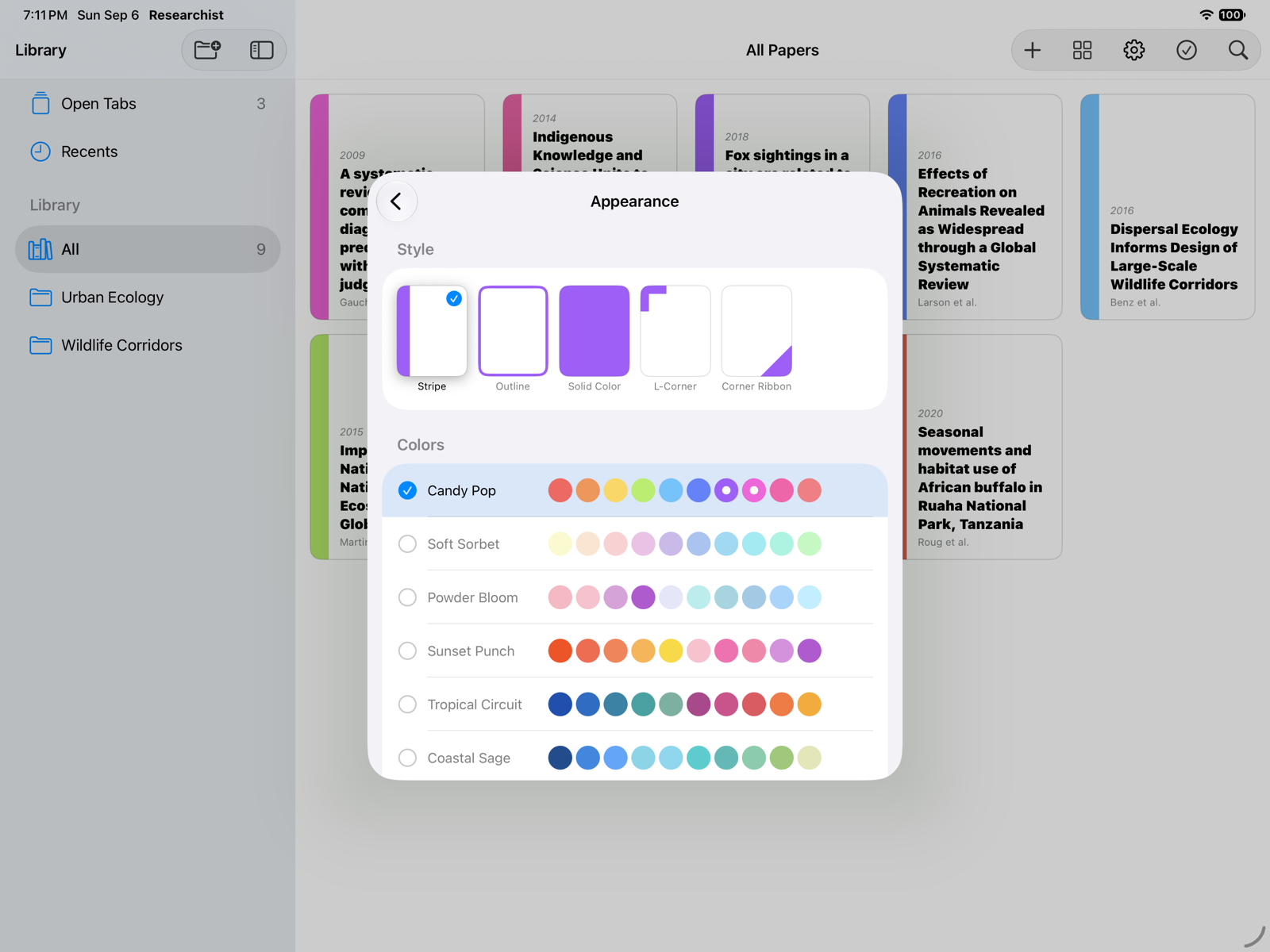
The Appearance settings with the five cover styles and the color themes

List or grid, and sorting

Tap View Options in the toolbar to switch between List and Grid, and to sort by Date Modified, Date Added, Title, or Author.

Search

The search field looks through titles, authors, and years. To search inside a paper's text, open it and use the find command instead. See Reading a Paper.

Edit a paper's details

If the title, authors, or year came out wrong, open the paper's context menu and choose Edit Details….

Delete a paper

Choose Delete from the paper's context menu. This removes the PDF, including its highlights and notes, from your library on every device.

Organizing Your Library

The library is where all your papers live. The sidebar has Open Tabs, Recents (the last 20 papers you opened), All, and your collections.

Collections

Collections are folders for papers, for example one per project or course. They require a Researchist Pro subscription.

  1. Click New Collection at the top of the sidebar.
  2. Enter a name and confirm.
  3. Add papers by dragging them onto the collection, or right-click a paper and choose Add to Collection.
The library with two collections in the sidebar and the New Collection dialog open

A paper can be in several collections. Rename or delete a collection from its context menu; deleting a collection does not delete the papers.

Colors and cover styles

Every paper gets a color from the current theme, and you can change it: right-click the paper and choose Color. The color also becomes the paper's first highlight swatch. Themes and cover styles (Stripe, Outline, Solid Color, L-Corner, Corner Ribbon) live in Settings › Appearance. The first theme and style are free; the rest are part of Researchist Pro.

The Appearance settings with the five cover styles and the color themes

List or grid, and sorting

Click View Options in the toolbar to switch between List and Grid, and to sort by Date Modified, Date Added, Title, or Author. In list view, Shift-click and ⌘-click select several papers at once.

Search

The search field looks through titles, authors, and years. To search inside a paper's text, open it and press ⌘F instead. See Reading a Paper.

Edit a paper's details

If the title, authors, or year came out wrong, right-click the paper and choose Edit Details….

Delete a paper

Choose Delete from the paper's context menu. This removes the PDF, including its highlights and notes, from your library on every device.

Return to Help Center