
Highlights & Notes

Highlights and notes are free for everyone. They are saved inside the PDF itself, so they travel with the file when you share it and sync with the paper through iCloud.

Highlight text

Two ways:

  • Select text, then choose Highlight from the menu that appears.
  • Tap the highlighter in the floating toolbar to turn on highlighter mode, then drag across text. Tap it again to turn it off.

With highlighter mode on, the toolbar shows the color swatches: the paper's own color first, then the six default colors (blue, green, yellow, orange, pink, purple).
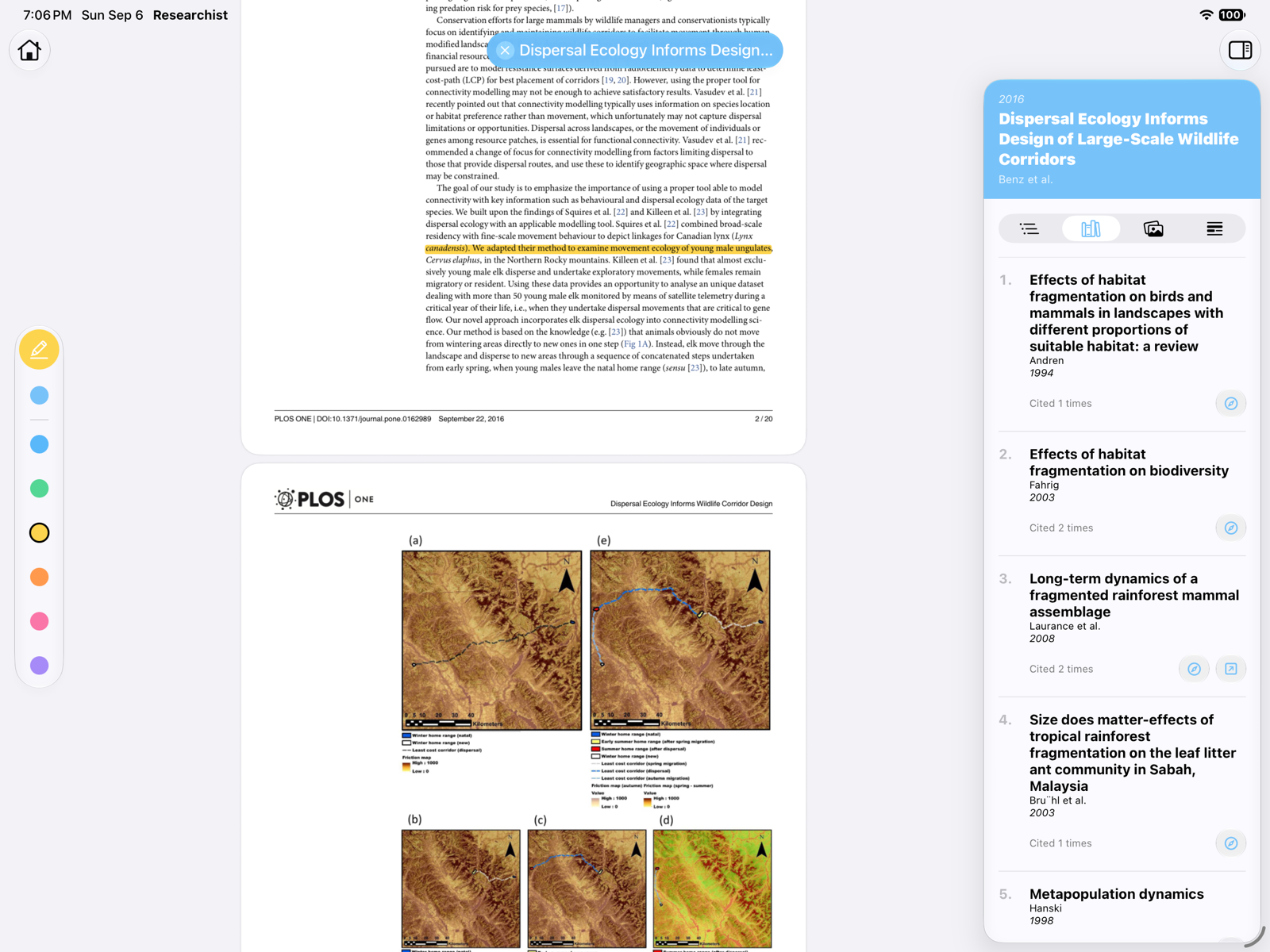
The floating toolbar in highlighter mode with color swatches and a yellow highlight on the page

With Apple Pencil, double-tap the pencil to toggle highlighter mode and squeeze it to switch color.

To remove a highlight, select it and choose Remove Highlights, or swipe it in the Highlights tab and choose Delete Highlight.

Add a note

  • Note on a highlight: open the inspector, choose Highlights, and type in the Add Note field under the highlight.
  • Standalone note: in the Highlights tab, tap the Add Note button in the corner and type.
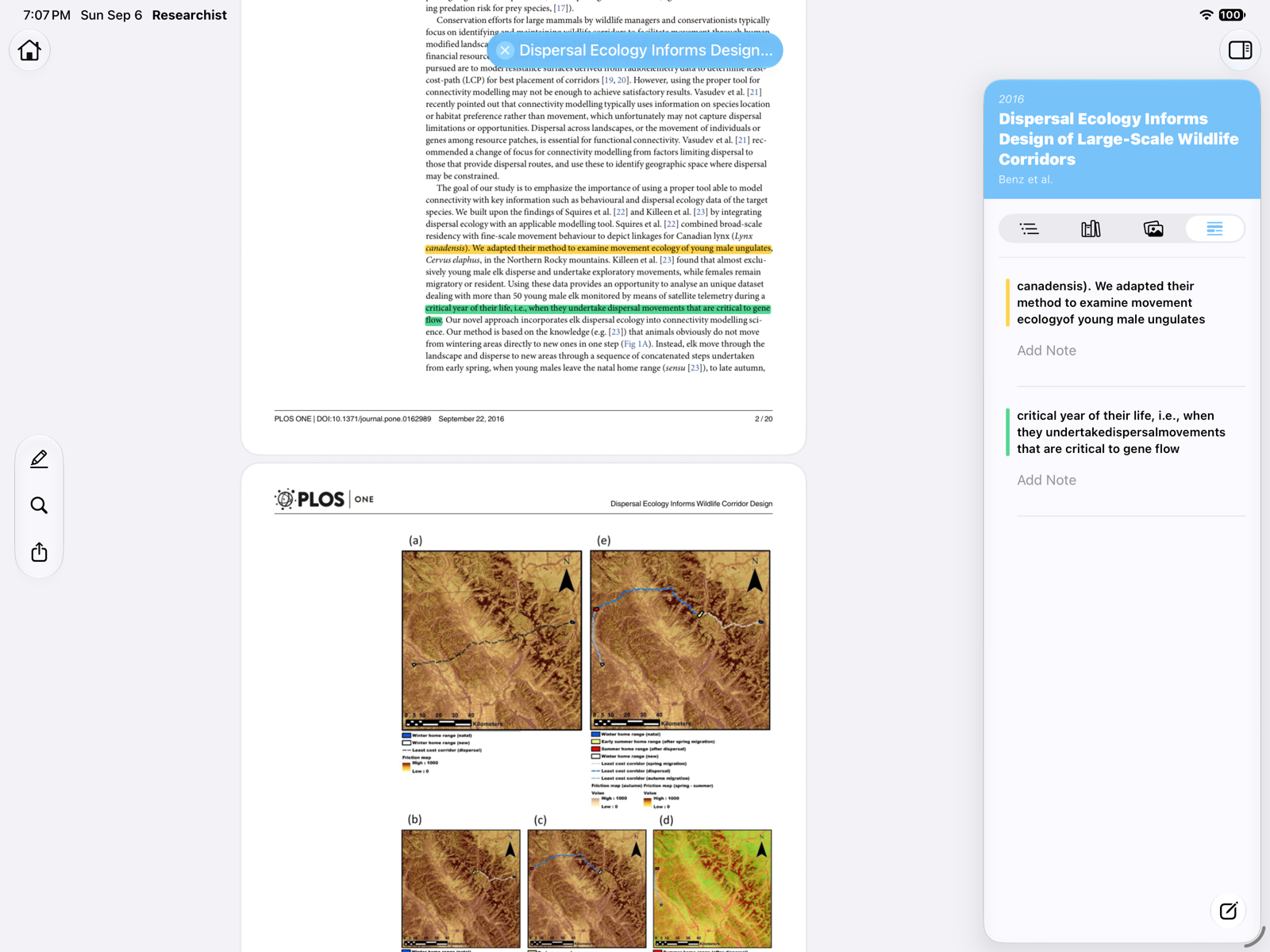
The Highlights tab listing two highlights, each with an Add Note field, and the Add Note button

Notes are listed together with highlights in the Highlights tab, in page order. Delete one with Delete Note.

Share a paper with your highlights

Tap the share button in the floating toolbar to send the PDF. Your highlights are included, because they are part of the file. Use the share sheet to print, save to Files, or send to another app.

Highlights & Notes

Highlights and notes are free for everyone. They are saved inside the PDF itself, so they travel with the file when you share it and sync with the paper through iCloud.

Highlight text

Two ways:

  • Select text, then choose Highlight from the context menu.
  • Click the highlighter in the floating toolbar to turn on highlighter mode, then drag across text. Click it again to turn it off.

With highlighter mode on, the toolbar shows the color swatches: the paper's own color first, then the six default colors (blue, green, yellow, orange, pink, purple).

The floating toolbar in highlighter mode with color swatches and a yellow highlight on the page

To remove a highlight, select it and choose Remove Highlights, or use Delete Highlight in the Highlights tab.

Add a note

  • Note on a highlight: open the inspector, choose Highlights, and type in the Add Note field under the highlight.
  • Standalone note: in the Highlights tab, click the Add Note button in the corner and type.
The Highlights tab listing two highlights, each with an Add Note field, and the Add Note button

Notes are listed together with highlights in the Highlights tab, in page order. Delete one with Delete Note.

Share a paper with your highlights

Click the share button in the floating toolbar to send the PDF. Your highlights are included, because they are part of the file. Use the share sheet to print, save, or send to another app.

Return to Help Center