
There are three ways to get papers into your library: add PDF files, drag them in, or import from Zotero.
Add PDF files
- In the library toolbar, tap + (Import).
- Choose Add PDFs….
- Select one or more PDF files and confirm.
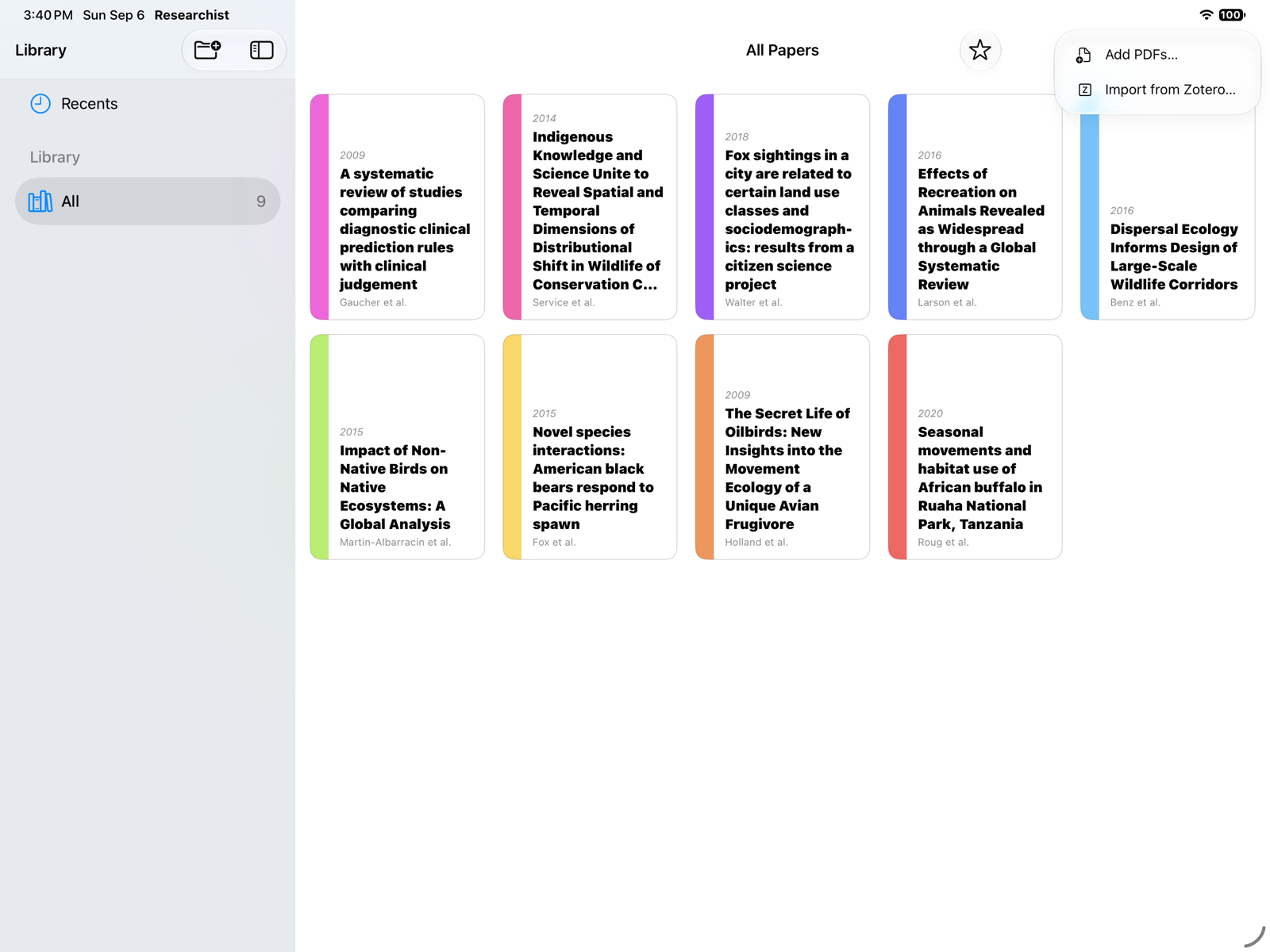
While files are copied you'll see a progress badge such as Importing 1 of 5. Researchist reads the title, authors, and year from each PDF. If Apple Intelligence isn't available on the device, imported papers use their file name as the title; use Edit Details… in the paper's context menu to fill in the details.
Drag and drop
Drop PDF files anywhere onto the paper list. You can also drag a paper from the list onto a collection in the sidebar to add it there.
Import from Zotero
- Tap + and choose Import from Zotero….
- The first time, tap Connect Zotero… and sign in to your Zotero account in the browser window that opens.
- In the Zotero sheet, browse All Items or a collection. Each item shows whether it has a PDF attachment and whether it is already in your library.
- Select the items you want and tap Import. Items with several PDFs ask you to pick one each.
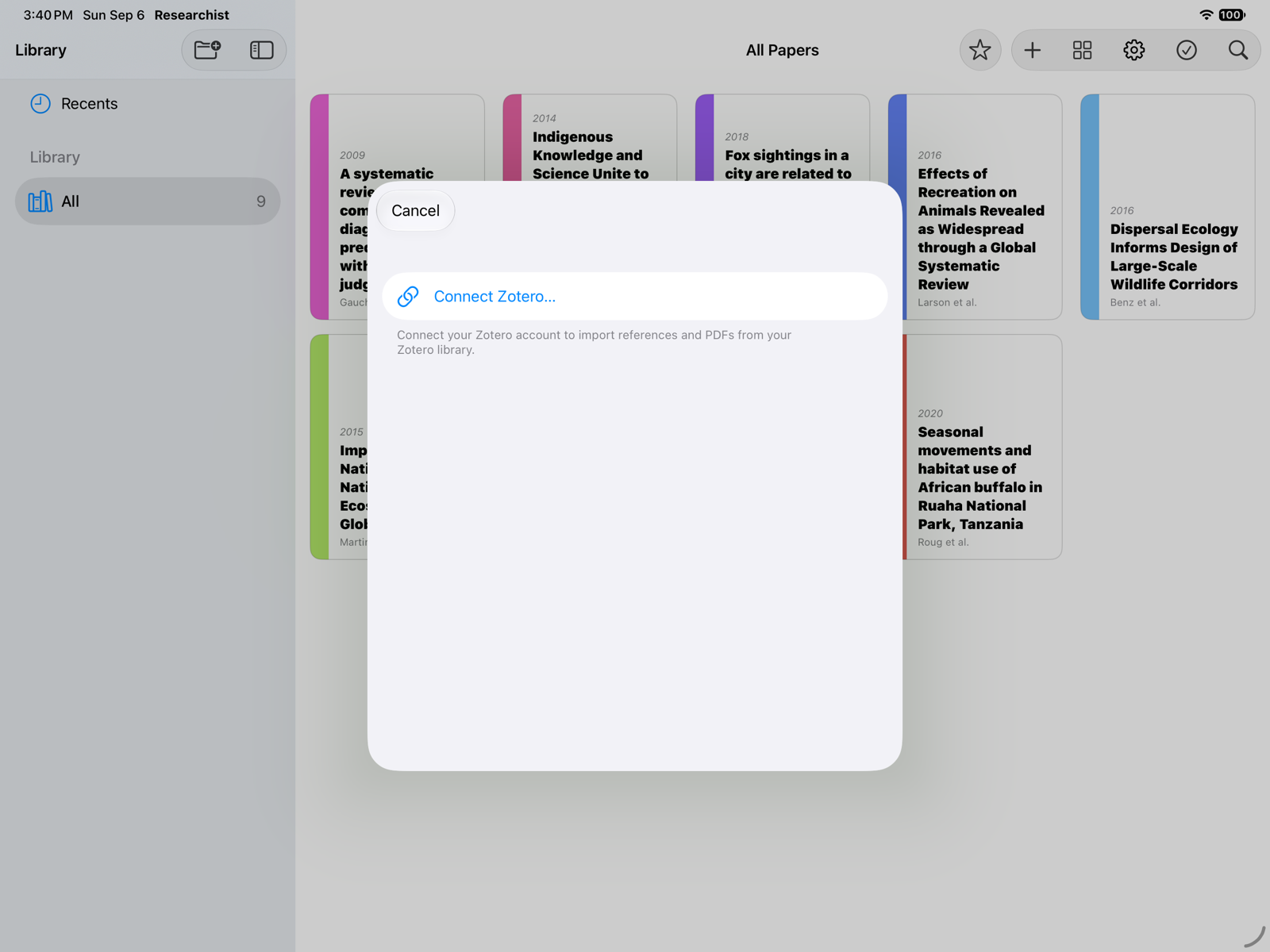
Only items with a PDF attachment are imported. You can disconnect Zotero later in Settings › Zotero Account; imported papers stay in your library.
What happens next
Import does not run Paper Intelligence automatically. Open a paper and run it from the inspector when you're ready. See Paper Intelligence.


.svg)
